
Editor
Purpose
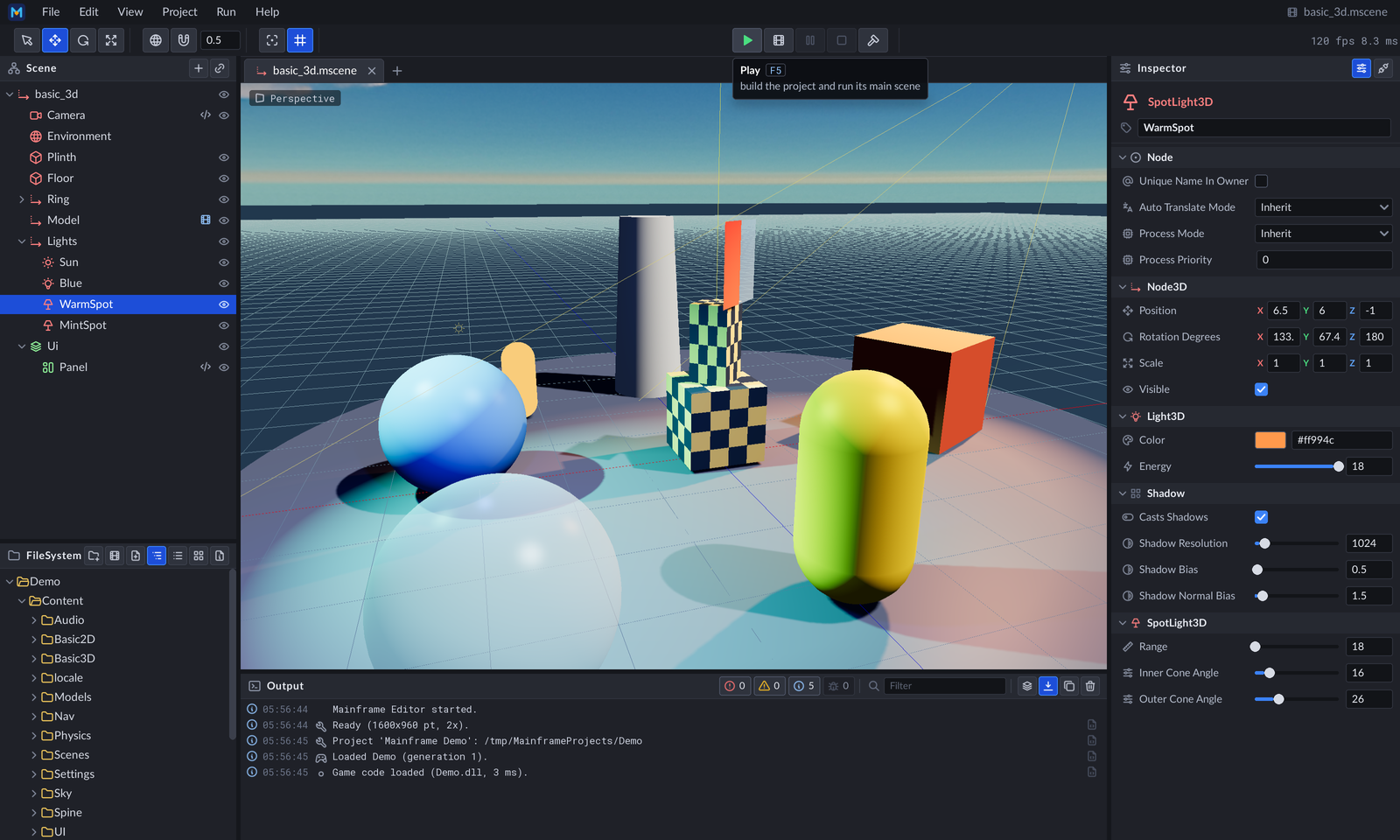
Section titled “Purpose”The Mainframe Editor (MainframeEngine.Editor, milestone M10) edits .mscene files the way Godot does: a scene tree,
an inspector driven by the generated node metadata, a 3D viewport with picking and gizmos, undo/redo, all in a UI built
with the engine’s own game UI stack (RmlUi). This page describes what ships: E1 shell, E2 scene tree +
inspector + undo, E3 viewport, E4 projects (Project Manager, New Project wizard, project settings, the
FileSystem panel, out-of-process Play, game code loading and reload) and E5 polish (signals, multi-select editing, 2D
editing, resource files and custom inspectors, editor settings). What is still open is in
Future: editor.
just editor # the Project Manager (recent projects, New Project, Open)just editor path/to/MyGame # open a project folder (or its project.mfproj)just editor Examples/Demo/Content/Scenes/basic_3d.mscene # open one scene (its project becomes current)On macOS the app is called Mainframe Engine (Dock tooltip, bold app menu, Cmd+Tab) in development runs as well as in
the release .app: the build assembles bin/<cfg>/net10.0/Mainframe Engine.app and dotnet run starts the editor from
inside it (release: macOS app name). Launching the bare bin/…/MainframeEngine.Editor
still works but shows the executable name.
Decisions: 0080 code-driven editor, edit mode, a SubViewport per tab ·
0081 one document per panel, data binding, generated inspector ·
0082 undo/redo ·
0083 files before projects, crash safety, close interception ·
0084 brand and window icons ·
0085 Tabler icon atlas ·
0086 [EditorIcon] and families ·
0087 tooltip widget ·
0088 tree create dialog ·
0089 icons over text ·
0096 macOS app name ·
0097 projects and code reload ·
0098 Play pipeline ·
0099 FileSystem panel and reference fix-ups ·
0101 E5 polish.
Structure
Section titled “Structure”flowchart TB
App["EditorApp : Engine<br/>Tree.EditMode = true · IEditorHost"] --> WS["EditorWorkspace [Tool]"]
WS --> S["EditorSession<br/>open scenes, active tab, project folder"]
WS --> PS["ProjectService<br/>project, game assembly (collectible ALC), reload"]
WS --> PC["PlayController → PlayService<br/>dotnet build, game processes, EditorLinkServer"]
S --> ES["EditedScene (per tab)<br/>root · file · UndoRedo · Selection · EditorCamera"]
ES --> SV["SubViewport (own World3D)<br/>scene root + EditorGrid"]
WS --> VC["ViewportController [Tool]<br/>camera, picking, gizmo, icons"]
WS --> PL["UiLayer 0: panels<br/>menubar · toolbar · scene_tree · filesystem · viewport · inspector · output · splitters"]
WS --> DL["UiLayer 50: dialogs<br/>popup menu · file picker · list picker · message box · connect signal · settings"]
WS --> PM["UiLayer 40: Project Manager · New Project"]
WS --> SP["UiLayer 100: splash"]
WS --> C["EditorCommands (ids)<br/>menus · buttons · shortcuts · QA scripts"]
VC -- "CameraOverride, OverlayLines" --> SV
SV -- "ColorTarget → engine://editor-viewport" --> PL
| Type | File | Role |
|---|---|---|
EditorApp | EditorApp.cs | Engine host: edit mode, window title/size, modifier keys, SDL close-request filter, automation hooks |
EditorWorkspace | EditorWorkspace.cs | Composition root node: builds the panels, dialogs, splash and viewport controller; layout sync; shortcuts; quit prompt; recovery copies |
EditorCommands | EditorCommands.cs | Every action by id (file.save, edit.undo, gizmo.rotate, …); failures are reported, never thrown |
EditorSession, EditedScene | Session/ | Tabs, open/save/close, project folder; the per-scene edit operations |
UndoRedo, actions | Undo/ | History, merging, dirty tracking; set property, add, remove, reparent, rename, move, composite |
InspectorModel, InspectorProperty | Inspector/ | Rows from NodeTypeInfo; editor kinds, parsing/formatting; [CustomInspector] |
SceneTreeModel | SceneTree/ | Flattened rows with expand state |
EditorCamera, TransformGizmo, ViewportController | Viewport/ | Camera math, gizmo math, the viewport’s per-frame work |
EditorLayout, FilePickerModel, OutputLog, AtomicFile | Layout/, Files/, Output/ | Pure models (unit-tested) |
ProjectService, ProjectCreator, RecentProjects, ProjectSettingsModel, DotnetSdk | Projects/ | The open project, game assembly load/reload, New Project (dotnet new mfgame), recent list, the settings dialog’s model |
PlayService, PlayController, GameBuilder, GameLauncher | Play/ | Build, launch, track and control game instances |
ProjectFileSystem, FileOperations, ReferenceFixer, Trash, ThumbnailCache | FileSystem/ | The FileSystem panel’s model and file operations |
EditorSettings, CodeEditorLauncher, EditorTheme | Settings/ | Editor preferences, the external code editor, the accent overlay |
ProcessRunner | Tools/ | Child processes (dotnet) with line callbacks, timeout and a clean MSBuild environment; returns at exit even while MSBuild nodes it started hold the output open |
| Panels and dialogs | UI/ | One EditorDocument (a UiDocument) per RML file in Content/Editor |
Edit mode and edited worlds
Section titled “Edit mode and edited worlds”- The editor’s scene tree runs with
SceneTree.EditMode: only nodes whose type is marked[Tool]getOnProcess/OnPhysicsProcess/OnInput/OnUnhandledInput, and physics does not step (bodies stay where they were authored; collision shapes are still drawn). Enter/ready/exit callbacks run, so visuals, lights and cameras register with their worlds as usual, except for the game’s own code (Godot’s editor rule, ADR 0127):Tree.EditModeScriptsmarks the collectible game assembly’s types, whoseOnEnterTree/OnReady/OnExitTreefall back to their nearest engine base type’s and whoseOnDrawis skipped unless the type is[Tool]. The editor’s ownEditorWorkspaceandViewportControllerare[Tool]nodes. - One world per tab: each open scene lives under its own
SubViewport(its ownWorld3D: lights, sky, physics space). Only the active tab renders. A 3D tab’s tonemapped colour target (SubViewport.ColorTarget), or a 2D tab’s canvas target (aDisable3Dsub-viewport drawn by the canvas renderer with the editor camera as its canvas transform and the grid, markers and gizmo as debug lines on top, ADR 0126/0127), is published to the UI asengine://editor-viewportand shown by an<img>in the viewport panel; the view’s pixel size follows the panel. - The editor camera is
SceneViewport.CameraOverride— the scene’s ownCamera3Ds and theirCurrentflags are never touched. - Edit mode is silent (ADR 0144): the editor runs an
AudioServer(engine default bus layout; the project’s layout is not applied, so a muted or ducked bus cannot silence previews; no device → the null device), but audio nodes are inert whileTree.EditModeis set —AudioPlayback(the three players) ignoresPlay()andAutoplay, and anAudioListener3Dnever takes the listener. Opening a scene never makes a sound; the editor plays sounds only through Audio previews. The edited scene is shadowed: its view setsSubViewport.Shadows, and since the editor’s main world draws nothing, the shared shadow maps (Shadows v2: cascades, atlas, PCF) go to the active tab’s view. - The current project (see Projects) sets
AssetDatabase.CurrentandContentPaths.ProjectDirectory, so scenes’ textures, models, sky and Spine folders load from the project sources. Opening a lone scene without a project makes its project current: the nearest ancestor folder holding aproject.mfproj, else the folder above the scene’sContent/. Game node types come from the project’s game assembly; a type that is not loaded is aMissingNode, kept intact and written back (the inspector says so).
| Panel | Document | What it does |
|---|---|---|
| Menu bar | menubar.rml | The C3 logo mark (About), File (New/Open Scene, New/Open Project, Project Manager, Save, Save As, Close, Quit), Edit (Undo/Redo with the action names, Undo History, Add Node, Instance Scene, Rename, Duplicate, Delete), View (frame, axis views, reset, 2D/3D view, grid), Project (Project Settings, Open User Data Folder, Build & Reload Code, Reload Code, Editor Settings, Close Project), Run (Play, Play Scene, Run Another Instance, Pause/Resume, Reload Scene in Game, Stop), Help (Documentation, shortcuts, Check for Updates…, about) — every item with a leading icon and its shortcut; the scene’s icon and name and an unsaved dot on the right |
| Toolbar | toolbar.rml | Icon tool buttons with tooltips: Select/Move/Rotate/Scale (Q/W/E/R), Global/Local (T, the icon switches world/cube), Snap (Y) + move step, Frame (F), Grid (G), Preview Post-Processing (sparkles); the play group — Play (F5), Play Scene (F6), Pause (F7), Stop (F8), Build & Reload (Ctrl+Shift+B), Open User Data Folder (folder-user) — with a chip per running instance (status icon, label; click for its menu) and a build/reload status; on the right Documentation (book, F1: the docs site in the browser), the update badge and the fps / frame-time readout |
| Scene tree | scene_tree.rml | The hierarchy with a type icon tinted by family per row (name and type in its tooltip); badges for configuration warnings (NodeWarnings), instanced sub-scenes (their insides are not listed) and scripts (game types; tool scripts); an eye toggling Visible (undoable); expand/collapse, click / Cmd+click / Shift+click, drag onto a row’s middle to reparent or onto its top/bottom edge to reorder (global transform kept), double-click/F2 rename, right-click menu with icons (add child, instance scene, rename, duplicate, move up/down, delete); Add/Instance as header icon buttons |
| Viewport | viewport.rml | Scene tabs (the root node’s icon, title with * when dirty, file path tooltip, close ×, +), the 3D view, the view’s mode with an icon in the corner, an empty-state hint |
| Inspector | inspector.rml | Header with the type’s icon and family-coloured name (doc summary and base chain in its tooltip), editable name, Properties / Signals tabs, custom-inspector header, collapsible sections per declaring type (its icon) / [ExportGroup], one row per [Export] with an icon before its name and a tooltip (below); also edits resource files (Resource files) |
| Output | output.rml | Engine Log messages (OutputLog is an ILogSink): level icon, time, category icon (subsystem; name in the tooltip), text, ×N for folded repeats, a link to the logging source line (opens MAINFRAME_CODE_EDITOR, VS Code or the system app). Header: per-level toggles with counts, filter field, Collapse Duplicates, Follow, Copy, Clear (filters and toggles persisted) |
| File system | filesystem.rml | The project’s files as a tree, list or thumbnail grid (FileSystem panel) |
| Splitters | splitters.rml | Four drag handles (left dock, right dock, output, scene tree / file system) |
| Project Manager, New Project | project_manager.rml, new_project.rml | Layer 40 above the panels (Projects) |
| Settings dialogs | project_settings.rml, editor_settings.rml, connect_signal.rml | Project Settings, Editor Settings, Connect Signal |
| Dialogs | tree_picker.rml, file_picker.rml, list_picker.rml, message.rml, popup_menu.rml | The create dialog (Add Node, New Resource, Instance Scene; below), modal file picker with file-type icons (open/save/folder, filters, Home/Project/Content places, overwrite confirmation), searchable list (node paths), message box / prompt with a title icon, popup menus |
| Tooltips | tooltip.rml | Its own layer above the dialogs (Tooltips) |
| Splash | splash.rml | Logo, “Mainframe Engine”, “Editor vX.Y.Z”, status line, progress bar on the brand navy; shown while the editor starts and while a scene loads, then fades. It never outlasts the loading, except a 1 s minimum on the very first launch |
- Theme:
theme.rcss+dialogs.rcss, a dark palette (base#15171c, panels#1f2128, accent#3b82f6) over the shared widget library’s controls; all sizes in dp. The editor is a desktop tool: its UI server keepsUiScaling.ConstantPixelSizeand every editor layer (panels, dialogs, project manager, tooltips, splash) is pinned toUiScaleMode.Dpi, so panels follow the display’s scale, never the window size or a game project’suisetting (Game UI → Scaling, ADR 0181). - Layout:
EditorLayoutcomputes every panel rectangle from the window size and the persisted sizes (left/right dock widths, output height, scene tree share), clamped to minimums; each document body is positioned in dp. Sizes, the window size and the output filter persist in~/.mainframe/editor_layout.json(user profile on every OS, written atomically; unreadable, newer or nonsensical files fall back to defaults). - Lists are data-bound (no work on idle frames); the inspector is generated RML updated in place (see below).
- The F12 developer overlay (Developer overlay) is off by default in the editor; F9 opens the RmlUi debugger (F8 is Stop, as in Godot).
Keyboard shortcuts
Section titled “Keyboard shortcuts”Cmd (macOS) or Ctrl: N new · O open · S save · Shift+S save as · W close tab · Q quit · Z undo · Shift+Z / Y redo · D duplicate · A add node · Shift+A instance scene · Up/Down move in tree · Shift+B build & reload. Plain keys: Delete/Backspace delete, F1 documentation (the docs site in the browser), F2 rename, F frame, G grid, Q/W/E/R tool, T local/global, Y snap, 1/3/7 front/right/top, F5 play (Shift+F5 another instance), F6 play the open scene, F7 pause/resume, F8 stop, F9 RmlUi debugger. Shortcuts are unhandled input: a focused text field keeps its keys, and closed dialogs release focus. While a song tab is active its own keys come first (Song tab): Space play/stop, R record, L loop, Home to start, Del, Cmd+C/V/D, arrows, Q; F5–F8 and the Cmd shortcuts above stay the editor’s.
Icons over text (Godot-style): every editor surface uses the shared icon atlas. A control shows an icon instead of a label wherever the icon is unambiguous, and every icon-only control has a tooltip naming it, its shortcut and what it does. Text stays where an icon cannot carry the meaning: menu item labels (which still get a leading icon), dialog primary actions, inputs and values.
Markup contract (shared by every lane and panel):
<span class="icon icon-player-play"/> <!-- a Tabler icon by name, 16 dp, tinted #c9cedb --><span class="icon icon-sm icon-cube icon-3d"/> <!-- icon-sm 14 dp / icon-lg 24 dp; family tint --><button class="tool-button" data-command="gizmo.translate" data-tooltip="Move (W) — translate selected nodes"><span class="icon icon-arrows-move"/></button>| Family class | Colour | Used for |
|---|---|---|
icon-3d | #fc7f7f red | Node3D and its subclasses, scenes, models |
icon-2d | #8da5f3 blue | Node2D and its subclasses |
icon-ui | #8eef97 green | UiLayer, UiDocument, RML/RCSS files |
icon-audio | #5eead4 teal | audio players and the listener, audio files |
icon-physics | #fbbf24 amber | collision objects (bodies, areas) and shapes |
icon-net | #c4a5ff purple | NetworkNode |
icon-logic | #a3abbd grey | Node, Timer, SubViewport, other plain nodes |
icon-resource | #e2e6ee neutral | every Resource type |
Also: icon-dir (folders, #e8c15a), icon-missing (types not loaded, red), icon-muted, icon-accent, and the
level tints icon-info/icon-warn/icon-error/icon-debug. The colours are Godot’s family hues lightened to read on
the #1f2128 panels; selected rows keep the tint.
- Atlas (0085): Tabler icons (MIT,
outline;
name-filledfor filled ones).Content/icons/icons.txtlists the icons the editor uses; only their SVGs are vendored (MainframeEngine.Editor/Icons/tabler).just editor-icons(make_atlas.py, needs Inkscape) renders one sheet SVG at 1x (16 px), 1.5x (24 px,icon-lg), 2x (32 px) and 3x (48 px) — white glyphs on a 20-unit pitch so linear filtering never bleeds — and writesicons.rcss: the sprite sheets (the 2x ones inside@media (min-resolution: 1.5x), so Retina picks them) and one.icon-NAME { decorator: image(i-NAME) }class per icon. Outputs are committed; builds never need Inkscape. New name: add it toicons.txt, runjust editor-icons-fetch(vendors the SVG from the npm package) and commit. Every RML document links/Content/icons/icons.rcssbeforetheme.rcss; tinting is RCSSimage-color. - Types (0086):
[EditorIcon("name", Family = …)]on a node or resource type (engine or game), recorded by the generator inNodeTypeInfo.Icon/IconFamily.EditorIconsresolves the nearest base type that declares one (and the nearest family), caches the result weakly per type (game types unload) and resets onTypeRegistry.Changed:For(Type|Node),Family(Type)(icon-3d…),FamilyOf,Classes(Type|Node)("icon icon-cube icon-3d", the same string instance every call),ForFile(path)andFileFamily(path)(scenesmovie, resourcespackage, imagesphoto, audio, models, fonts, RML/RCSS, translations, shaders, C#, project and JSON files; foldersfolder+icon-dir). Every engine type has its own icon (Camera3Dvideo, lightssun/bulb/lamp, WorldEnvironmentworld, MeshInstance3Dcube, Sprite3Dphoto, SpineNodebone, audio playersvolume, AudioListener3Dear, bodiesbox/ball-bowling/run/border-corners, shapesshape, UIstack-2/layout, NetworkNodenetwork, Timerclock, SubViewportdevice-desktop, Nodecircle-dot, Node3D/Node2Daxis-x/axis-y; resources: meshes,palettematerials,phototextures,musicstreams, shapes,moviescenes,adjustmentsbus layouts …). - Properties:
PropertyIconspicks the icon before a property’s name — the member’s own ([Export(Icon = "…")]or[EditorIcon]), a resource slot’s resource type (tinted), aNodePath’s target node (or itsNodeTypehint), then a semantic icon by name (Positionarrows-move, Rotationrotate, Scalearrows-maximize, Visibleeye,…Colorpalette, Volumevolume, Massweight,…Speed/…Velocitygauge, Textletter-t, layers, process, shadows …), else the value kind (numberhash, booltoggle-left, textletter-t, vectoraxis-x, enumlist, flagslist-check, arraybrackets, quaternionrotate, transformtransform). - Gotcha: RmlUi drops bare text that is a direct child of a flex container — wrap labels next to icons in a
<span>(<button class="with-icon"><span class="icon …"/><span>Home</span></button>).
Tooltips
Section titled “Tooltips”TooltipOverlay (0087) is a document on its own UI layer (90: above
the dialogs, below the splash) whose body never takes the mouse. Any element of an editor document — or its nearest
ancestor — with data-tooltip shows a tooltip after 0.5 s of hovering, or the same delay after it gets keyboard
focus (:focus-visible). Text format: Title (Shortcut) — description, further lines after \n: a bold title, the
shortcut as a key cap (Ctrl reads Cmd on macOS), the description muted. The box sits under the element and is kept
inside the window (above the element when there is no room below; measured one frame after layout). A click, key or
wheel hides it until the pointer moves to another element. Per frame it reads the hovered and focused element of the
dialog and panel layers and compares handles: idle frames allocate nothing.
Create dialog
Section titled “Create dialog”TreePickerDialog (0088) serves Add Node, the inspector’s
New resource button and Instance Scene (PickerSources: registered node types, the resource types a slot
accepts, the project’s .mscene files as a folder tree with Browse… for others). The entries form a tree
(PickerTree: inheritance, abstract types as italic structure-only rows; game types under their engine base with their
inherited icons), sorted by name. The search is fuzzy (exact > prefix > word start > substring > subsequence, shorter
names first; “mi3” finds MeshInstance3D), keeps every match’s ancestors visible and selects the best creatable match.
Favourites (star a row) and Recent (the last 8 created) are persisted per dialog in the editor settings
(PickerFavorites/PickerRecent in editor_layout.json). The description pane shows the selection’s icon and name,
its ancestor chain with icons and its doc summary. Double click or Enter creates; Up/Down move; Escape cancels.
Inspector
Section titled “Inspector”InspectorModel.Build(target) walks the generated NodeTypeInfo.Properties (base types first) of a node or resource.
Rows are grouped into sections by [ExportGroup], else by declaring type (“Node”, “Node3D”, “Light3D”…). The widget
comes from the value type and the [Export] hints:
| Kind | From | Widget |
|---|---|---|
| Bool | bool | checkbox |
| Integer / float | integer and floating types | text field (invariant culture) |
| Range | Range = "min,max[,step]" | slider + field; values clamp |
| Text, multiline | string, Multiline | field, text area |
| File / directory path | File = "*.png,…", Directory | field + browse (stored project-relative) |
| Enum, flags | enums; [Flags] or Flags = true | dropdown; a checkbox per single-bit flag |
| Vector2/3/4 | Vector2/3/4 | one field per axis (coloured X/Y/Z/W) |
| Quaternion | Quaternion | Euler degrees (X→Y→Z, like RotationDegrees) |
| Color | System.Drawing.Color, or a Vector3/Vector4 named …Color (lights) | swatch + hex field; the swatch opens RGBA sliders |
| NodePath | NodePath (NodeType hint filters) | field + pick from the scene’s nodes (stored relative to the node) |
| Resource | Resource subclasses | label with the resource’s icon + Edit (fold), Save as .mres (inline only), Load (file), New (the create dialog: types assignable to the slot), Clear icon buttons; inline resources and .mres files expand into nested rows (up to 3 levels), their [ExportGroup]s as collapsible titles (Resources in place) |
| Array | T[], List<T> | count, + Add, per-element fields (scalars) and remove; elements that are resources (a def’s levels) get the resource buttons per element (Edit folds the element’s properties in below the array under “Name [i]”, Load, New, Clear) |
| Transform, unsupported | Transform3D/2D, others | read-only text |
-
Every row has an icon before its name (
PropertyIcons, Icons) and a tooltip: “Label — doc summary” (the member’s<summary>, recorded by the generator), then the hints (range and step, file filter, folder, target node type, translated) and the member with its type (RotationDegrees: Vector3). Row actions (pick node, browse, resource edit/load/new/clear, array add/remove, colour picker) are icon buttons with tooltips. -
The name column fits the longest label (up to a cap) unless the splitter between names and values was dragged; the dragged width persists (
InspectorLabelWidthineditor_layout.json), double-clicking the splitter returns to automatic. Long names end in an ellipsis; the tooltip has the full name. -
Several selected nodes edit together (Multi-select editing); the Signals tab is described under Signals.
-
Edits go through the scene’s undo history: text fields commit on Enter or focus loss (a field being edited commits to its own node before the inspector switches to another), checkboxes/dropdowns/buttons at once, slider drags as one merged entry. Invalid text is rejected and the field restored.
-
After any change (undo, redo, gizmo drag — live while dragging) only values that changed are written into the existing elements; the RML is regenerated when the selection or a shape (array length, resource) changes.
-
[CustomInspector(typeof(T))]classes implementingICustomInspector(public parameterless constructor) can add header RML (elements withdata-actioncall back), hide generated rows and act through the scene’s history. The editor’s ownMissingNodeInspectorexplains missing types,AudioBusLayoutInspectoredits bus layouts,LightProbeVolumeInspectorshows a probe volume’s bake state with a Bake Lighting button (ADR 0170). They are found in loaded assemblies that reference the editor, game assemblies included (Resource files and custom inspectors).
Resources in place
Section titled “Resources in place”ADR 0169, for a WorldEnvironment’s PostProcessProfile (or any resource):
- Nested groups. A nested resource’s
[ExportGroup]s are section titles (indented,data-section="nested:Type/Group"), closed by default like Godot’s sub-resources; a click opens one (remembered per type and group for the session). Members outside a group are listed as before. - Resource files edit in place. Edit (pencil) also opens a
.mresresource in the slot (the Forest’sforest.mres). Edits go through the scene’s history like any row, apply at once (the render server reads the profile every frame) and the file is written when the scene is saved (EditedScene.EditedResourceFiles, keeping its UID), as Godot saves edited sub-resources. Imported assets (a.cubeLUT, a texture, a model) keep their data in the source file and do not open. - Save as .mres (
device-floppy, on inline resources; the minimal G7.2 path of future/editor-viewport-tools.md): a file picker underContent/, then a deep copy is saved (ResourceSaver.Save, a newres_UID) and every slot of the scene that held the inline resource (nodes the scene saves and the inline resources they reach:EditedScene.SlotsHolding) gets the file, as one undo step (“Save PostProcessProfile as look.mres”); undo puts the inline resource back, the file stays. A path whose UID is loaded is refused. Make Unique, Open and Show in FileSystem (the More menu) are not built yet. - New creates a
PostProcessProfileat once (one concrete type for the slot), expanded below. - The slot’s row. The resource’s icon and name take the editor column’s whole width; the icon buttons (Play, Edit,
Save as .mres, Load, New, Clear) sit beside the name while both fit and otherwise wrap onto a line of their own below
it, right-aligned (
.prop-editor.res:flex-wrap, the buttons in one.res-actionsgroup). Only a name longer than the column is cut, with an ellipsis (text-overflow). The name’s tooltip holds where the value lives — the file’s full path (Content/PostProcess/forest.mres), “inline (saved in the scene)” or empty — and its type (InspectorPanel.ResourceTooltip).
Undo / redo
Section titled “Undo / redo”Each tab has an UndoRedo of IEditorActions (Do, Undo, TryMerge): SetPropertyAction, AddNodeAction (new
nodes, duplicates, instanced scenes), RemoveNodeAction, ReparentAction, RenameAction, MoveInTreeAction,
CompositeAction (multi-node edits), ConnectSignalAction/DisconnectSignalAction.
- Committing after undo cuts the redo branch; beyond 256 entries the oldest are dropped. Actions holding detached nodes
free them when they leave the history (
IDiscardableAction). - Continuous edits merge by key until released (
EndMergeon mouse up / commit / undo / save). Gizmo drags apply live and commit once on release. - Delete keeps the subtree detached (owners, signal connections and index restored on undo); reparent restores the exact local transform on undo; duplicate packs the scene and re-instantiates the copies (unique names Box → Box2, nested instances stay instances, connections inside the copy belong to the edited scene).
- Dirty state: the history position against the saved one. Tab and window titles show
*; closing a dirty tab, or the window (close button, Cmd+Q, the Dock’s Quit — intercepted with an SDL event filter), asks Save / Don’t Save / Cancel. Closing the window always works (EditorWorkspace.OnCloseRequested): open dialogs — the Project Manager, pickers, wizards, settings — are closed first (Project Settings asks about its unsaved edits); only an open message box must be answered first, and a load in progress finishes before the request is handled. - Edit › Undo History lists every entry; choosing one undoes or redoes up to it.
Viewport
Section titled “Viewport”| Input (over the view) | Action |
|---|---|
| Left click | select (Cmd/Shift: toggle): icons of lights/cameras/audio first, else the GPU object-ID pick (two frames later). A picked node inside an instanced sub-scene selects the instance |
| Left drag on a gizmo handle | move / rotate / scale along that axis (centre: view plane / uniform), snapped when Snap is on (move step, 15°, 0.1) |
| Alt + left drag, middle drag | orbit around the pivot |
| Shift + middle drag | pan |
| Wheel | zoom (while flying: fly speed) |
| Hold right button | fly: mouse look + W/A/S/D/Q/E (Shift faster); the view says “fly” |
| F / 1 / 3 / 7 | frame the selection / front / right / top |
- Gizmos (
TransformGizmo): constant on-screen size (points × pixel scale), hit-tested by screen distance to the projected axes or rings, dragged by intersecting the mouse ray with the axis line (or the view plane), rotation from the accumulated screen angle around the pivot; local or global axes (scale is always local). Drawn into the view’sOverlayLines(no depth test) with highlighted hover/active handles. - Editor-only visuals (never saved):
Grid3D, orange selection boxes (mesh bounds) or crosses, sun/omni/spot icons with direction, cone and (selected) range, camera frusta, audio markers and range spheres, collision shapes (physics debug draw). - Preview Post-Processing (toolbar
sparklesbutton and View menu,view.post; on by default; ADR 0169): the 3D view runs the edited world’s post-processing (SubViewport.PostProcessing): itsWorldEnvironment’s profile and lens with the open project’srendering.antiAliasing,taaSharpnessandexposure, as the game shows them (TAA, SSAO, auto exposure, glow, shafts, grade, depth of field, film). The grid, gizmos, icons and selection boxes are drawn after the effects (neither graded, blurred nor jittered: Post-processing → Sub-viewports); 2D tabs have none. Off: the engine tonemap alone (faster on a large view). Auto exposure adapts over time in the view, as in the game. - View resolution (Editor Settings › 3D view,
EditorSettings.ViewResolution; Auto by default): the 3D view rendersViewportController.ViewScalepixels per point — the window’s pixel scale ×EditorSettings.ViewResolutionScale— and the UI stretches its image over the view (bilinear). Auto renders one pixel per point: every pixel on a 1× display, a quarter of them on a 2× one (Unreal’s DPI-based viewport scaling does the same); Full every display pixel; 75 % and 50 % of them on each side. Every effect of the post preview, the depth prepass and the scene pass scale with the view’s pixels, so this is what keeps a heavy scene interactive (the Forest: Performance).ViewPixels,LocalPixel, picking, the gizmo (TransformGizmo.PixelScale=ViewScale) and hit radii work in view pixels, so handles keep their size in points; light/camera/audio icons and selection crosses are sized in display pixels. 2D tabs and a UI preview’s backdrop always render every pixel. The look is the game’s at the view’s resolution: below Full the image is softer, and screen-space radii capped in pixels (GTAO’s) reach as far as they would on a 1× display. A change applies on the next frame (the view’s targets and post state are re-created, like a resize).
2D view
Section titled “2D view”Scenes whose root is a Node2D open in an orthographic view of the z = 0 plane in pixels (y down, as in Godot; seen from −Z); View › 2D View /
3D View switches any tab (0101). Middle or right drag (or Alt+left)
pans, the wheel zooms around the mouse, F frames the selection. A pixel grid (power-of-two steps at least 16 screen
pixels apart, every 8th brighter, coloured axes), Node2D markers, collision shape outlines and Camera2D frames are
drawn. Picking is on the CPU (rectangle and circle shapes, then node origins; later nodes are on top).
TransformGizmo2D (axis arrows and a free-move square, a rotation ring, scale handles) shares the tool, space and snap
settings with the 3D gizmo; moves snap to whole pixels, or to the move step when Snap is on. 2D tabs render through
the canvas renderer (sprites, Spine, custom drawing, shaders) with the editor’s shapes, markers and camera frames on top.
Projects
Section titled “Projects”(0097) The editor works on a game project: a folder
with project.mfproj and the mfgame template’s C# projects (Project & game host).
-
Start-up: a project argument (folder or
project.mfproj, or--project <dir>) opens it; a scene argument opens that scene and makes its project current; neither (or--project-manager) shows the Project Manager. -
Project Manager (
project_manager.rml, UI layer 40): the recent projects (~/.mainframe/recent_projects.json, newest first; a missing folder is flagged and can be removed from the list); icon buttons with tooltips on the right of the header for New Project, Open Project (also File › Open Project: a file picker that lists and accepts only.mfprojfiles, never a folder, and opens the project of aproject.mfproj) and Download Example (a menu: Mainframe Demo, Forest Demo); and a side panel with Open, Remove from List and the .NET SDK check (DotnetSdk: a .NET 10 or newer SDK is required; without one, a link to the download page). File › Project Manager returns to it. Each row shows the project’s icon,window.iconof itsproject.mfproj(Godot’sapplication/config/icon):ProjectIconResolverresolves it to an absolute PNG inside the project folder (anything else, a missing file or a malformed project means no icon, and the row keeps the folder glyph), caching by the modification times ofproject.mfprojand the icon, and reports a change once so the rows rebuild andRmlCore.ReleaseTextures()re-reads the image. New projects shipContent/icon.png(the template default, the brand logo) withwindow.iconset, and the Demo has its own. Project Settings › Window › Icon previews the PNG (32 dp) beside its field. -
New Project (
new_project.rml): name, parent folder, the engine source and a live validation (NewProjectValidation: a valid C# identifier, an empty or missing target folder, the engine, the SDK). The Engine row has two icon toggles:- package (
icon-package): theMainframeEngineNuGet package at the editor’s own version (EngineInfo.Version), shown as “MainframeEngine X.Y.Z · NuGet package”. It is the default in a release editor and needs no engine checkout. - engine checkout (
icon-folder-code): a path field and Browse, prefilled with the checkout found above the editor or inMAINFRAME_ENGINE_PATH.
Development builds (
0.0.0-dev,NewProjectValidation.IsPackageVersionfalse) have no package: that toggle is disabled with a tooltip saying why, and the checkout is used.Create runs
dotnet new mfgame --engine-source package|project … --engine-version <editor version>(ProjectCreator.NewArguments) from a private template hive (~/.mainframe/templates; the user’s global templates are untouched), builds the game, then opens it. The template comes from:- the checkout, for a checkout game;
- otherwise the copy published next to the editor (
Templates/mfgame,MainframeEngine.Editor.csproj), with the checkout the editor runs from as the fallback in development.
- package (
-
Download Demo (
download_demo.rml,DownloadDemoDialog; the Project Manager’s Download Example menu, one item perExampleProject): fetches the Demo or the Forest for this editor version and opens it. Below, the Demo stands for either: the Forest’s asset and folder areMainframeEngine.Forest(ExampleProject.AssetName). The location (default~/MainframeProjects, created when missing) and the engine checkout (found above the editor, orMAINFRAME_ENGINE_PATH; without one Download stays disabled with the same explanation as New Project) are validated as you type; the demo goes to<location>/MainframeEngine.Demo, which must not exist or be empty.DemoDownloaderstreamsMainframeEngine.Demo-vX.Y.Z.zipfrom the GitHub release ofEngineInfo.Version(a development or prerelease build usesreleases/latest/download/MainframeEngine.Demo.zip;DemoReleaseholds the one base URL) through the sharedEditorHttpclient into~/.mainframe/downloads/, with a progress bar and a size cap;DemoArchiveextracts into a hidden staging folder beside the destination with zip-slip, symlink and 1 GiB guards and validates it (one top folder withproject.mfproj, a desktop project, scenes);EnginePathRewriterpointsMainframeEnginePathof itsDirectory.Build.propsat the engine checkout; then the folder is moved into place (same volume), the project opens like a New Project and joins the recent list. Cancel stops the download; a failure (no published demo, no network, disk) shows its message with Download still enabled to retry, and the zip and staging folder are always deleted, so the destination is never half written. Tests injectEditorWorkspaceOptions.DemoHttpHandler/DemoDownloadsDirectory. -
ProjectServiceopens a project:EditorSession.OpenProject(the asset database scansContent/and creates missing.metasidecars),GameProjectLayoutfinds the game library, desktop project (or a legacy*.Launcher) and solution, and the game assembly loads into a collectibleAssemblyLoadContext(GameAssemblyLoader), built first when it is missing or fails to load. Its node and resource types join the create dialog, the inspector and[CustomInspector]discovery. -
Code reload: a debounced watcher on the build output reloads after any build (the editor’s Build & Reload, F5, or an IDE’s); a watcher on the sources shows “rebuild needed”. Only scenes that use game code (
GameCodeScanner: game or missing node/resource types, nested resources included) are serialized (unsaved edits included), freed, the old assembly unloaded and verified collected, the new one loaded and the scenes re-instantiated in the same tabs with their file, dirty state, selection and camera. Their undo history is dropped; other scenes keep theirs. A type the new build no longer has loads asMissingNodewith its data. If the old context survives,ReferencePathFinderlogs the reference path that keeps it alive. -
Project Settings (Project › Project Settings,
ProjectSettingsModel): every section ofproject.mfproj— Application (name, main scene, game assemblies, Demo Build), Window, Input Map (actions, deadzones, bindings captured from the next key or mouse press, gamepad inputs from a list; each action’s settings-menu label, rebinding group and a lock icon toggle for actions players cannot rebind), Physics 3D/2D, Audio, Localization, Rendering, UI (scale mode, reference resolution, match width or height, min/max scale; ADR 0181), Saves (below), Autoloads, Steamworks (App ID, Demo App ID, run outside Steam in development, relaunch through Steam). Each edit is undoable (the dialog’s own history, Ctrl+Z inside it); invalid values are refused with a message; Save writes the file atomically and applies it to the session. -
Saves page (
savesanduserDataName, Project & game host): User Data Name (its tooltip says why to set it once: renaming the project or its window title then keeps players’ saves and settings; empty uses the name), the resolved User Data Folder (read-only, follows the edit) with an Open User Data Folder icon button, Max Save Size in MiB (maxBytes, above 0 and at most 2047), Backups (0–16), Compression (None/Gzip), Thumbnails and the thumbnail width/height (1–4096). Undoable like the other pages. -
Open User Data Folder (Project menu, the toolbar’s folder-user button; Godot’s name): opens the open project’s
UserDataPaths.GetDirectory(UserDataFolderName)— the folderGameHost.UserDataDirectoryuses, honouringMAINFRAME_USER_DATA— in Finder / Explorer / the file manager (OsShell.OpenFolder, the folder itself, not revealed in its parent), creating it when missing (ProjectService.OpenUserDataFolder). Tests swap the opener throughEditorWorkspaceOptions.OpenFolder.
(0098) Games run out of process, connected over the editor link (Project & game host).
| Action | Key | What happens |
|---|---|---|
| Play | F5 | save the open scenes that have a file, dotnet build the solution, launch the game with --editor-port (its main scene) |
| Play Scene | F6 | the same with --scene <uid> of the open tab (an untitled scene asks for a file first) |
| Run Another Instance | Shift+F5 | one more instance (server + client tests); each gets a label |
| Play Instances | Ctrl/Cmd+F5 | every project.mfproj playInstances entry (label, args = the game’s own arguments after ++, delay in s from the first): one build, then each instance after its delay (Godot’s Customize Run Instances; e.g. a host and two tiled joiners); the main scene once when there are none |
| Pause / Resume | F7 | over the link |
| Stop | F8 | a stop command; the process is killed after 3 s (at once if it never connected) |
| Reload Scene in Game | Run menu, instance menu | the game re-reads its current scene from disk |
| Build & Reload | Ctrl/Cmd+Shift+B | build, then reload the editor’s game code |
- Arguments: host flags from a request come before
--editor-port/--scene; anything from++on (the game’s own) after them. - Before a code reload
ReleaseEditorReferencesalso clears the canvas server’s last frame and its per-node targets (CanvasServer.ReleaseSceneReferences), which would otherwise keep the 2D tabs’ game nodes alive. - Build errors (
GameBuilder:-v:minimal -p:GenerateFullPaths=true) are parsed into Output lines of categorybuild; clicking one opens the file at its line in the code editor. A failed build does not launch. - Game logs stream into Output as category
game(game·Categoryfor the game’s own categories), with the instance label when several run; their caller file and line open in the code editor. Process stdout/stderr is shown only until the game connects, or when it crashes before connecting. - Instances (
PlayService): each is a chip in the toolbar (status icon — launching, running, paused, exited, crashed — and label); clicking it opens its menu (pause/resume, reload scene, stop, clear). A hello is matched to its instance by process id. Exit code 0 or a requested stop is exited, anything else crashed (the exit code is logged). - Remote scene tree (0133, Godot’s Local/Remote switch): while
a launched game is connected, the Scene panel shows a Local | Remote toggle. Remote replaces the edited scene’s rows
with the game’s live tree, read-only (names and type icons), asked for over the link once a second
(
PlayService.RequestTree→PlayInstance.RemoteTree). The root and its children start expanded; expand state is kept by node path across snapshots. With several instances a chip per instance picks whose tree is shown. When the last game stops the panel goes back to Local. QA:remote on|off,remote pick <n>,remote toggle <name>.
UI preview
Section titled “UI preview”Double-clicking an .rml in the FileSystem panel (or its menu’s Preview UI) opens a UI preview tab beside the
scene tabs (UiPreview, UiPreview.cs): the document rendered
live as the game draws it, with its style sheets. Tabs are IEditorTabs (EditedScene or UiPreview):
EditorSession.Tabs/ActiveTab; Session.Active stays the active scene and is null while a preview is active, so
the scene tree, inspector and scene commands rest. Ctrl+W closes either kind; previews are never dirty.
- Rendering. The document sits in its own
UiLayer(layer 1: above the panels, below the project, dialog and tooltip layers) under the edited-scenes host — the editor’s root viewport, so it is live, not inert. The workspace keeps itsUiLayer.Region(Game UI) on the view area below the preview bar (EditorLayout.PreviewImage); the layer is visible only while its tab is active. Hover and clicks work. The layer’sUiLayer.Scalingis the open project’s UI scale (ProjectSettings.Ui, refreshed when the settings are saved), so the document is laid out as the game would lay it out in a window the preview’s size (ADR 0181). - Preview bar. One chip per file the document pulls in (
RmlLinks:<link type="text/rcss">andtype="text/template"resolved like the UI server —RmlPaths.Join, thenContentPaths.Resolve— plus the style sheets of linked templates, “via” the template; missing files in red; an “inline - Live reload. Each preview watches the project’s
Content/, the document’s folder and its links’ folders (UiHotReload, 150 ms debounce) and applies changes withUiServer.Reload(document, kind):.rmlreloads the document and re-reads the links,.rcssre-reads the style sheets (the DOM stays), images and fonts release textures. The editor’s own UI hot reload (Debug only) does not watch projects. - Scene behind the UI (off by default, per preview). The globe toggle renders a scene tab behind the document —
by default the last active scene, or one chosen from the picker.
ViewportControllerthen drives that scene’sSubViewportat the preview’s size through the scene’s own camera (CameraOverridecleared; a scene without a camera keeps its tab’s editor view), publishes it aseditor-viewportunder the preview layer, and draws no grid, gizmos or icons and takes no input. Closing the scene turns it off; a code reload puts it back (UiPreview.PendingBackdropfollows the suspended scene’s snapshot). - Stand-in data. A document’s data models are created by game code, so the preview binds stand-ins
(
UiPreviewData, shaped byRmlBindings, a scan of the document’sdata-modelscopes, data views and controllers,{{ }}text,data-foriterators and event calls): text shows the variable’s name, conditions are true, numbers 0,data-style-*values a neutral value their property accepts,src/hrefempty, lists have 3 rows and events do nothing. They areRmlDataModel.BindVariablesources (Game UI) that take any member a view asks for, and keep values written by inputs and assignments, so the document stays interactive. Rebuilt when the document changes; a “stand-in data” chip in the preview bar says which models are stood in for. A model the layer already has (none today) is left alone. - Limits. The layout size is the view’s size (no resolution picker yet). Scene
UiLayers stay inert in scene tabs.
FileSystem panel
Section titled “FileSystem panel”(0099) The project folder (C# and project
files included; build output, .mainframe and .meta sidecars hidden — header toggles) in three views: a tree,
the current folder as a list, or a grid of tiles with thumbnails (images decoded and downscaled in the
background into <project>/.mainframe/cache/thumbnails). Every entry has its file-kind icon (EditorIcons.ForFile;
scenes tinted by their root type’s family, resources by type) and badges: unsaved (an open scene with changes),
missing dependency, import error (invalid JSON, undecodable image).
- Double click opens scenes in a tab, UI documents (
.rml) in a UI preview tab, resource files in the inspector, C# files and style sheets in the code editor; folders open. - Right-click menu: Open (Preview UI and Open in Code Editor for
.rml), New Folder, New Scene, New Resource (the create dialog), Rename (F2), Move To, Move to Trash (Del), Copy Path, Copy UID, Reveal in Finder / Show in File Manager. - Rename and move keep references working: the
.metamoves with the file, and every scene, resource andproject.mfprojthat refers to a moved file is rewritten (ReferenceFixer:pathhints ofref/instanceobjects by UID, and plain path strings; folders map every file inside). Open scenes follow the move. - Delete moves to the OS trash (macOS
NSFileManager, Windows recycle bin, the freedesktop trash on Linux); only when there is no trash does it ask before deleting permanently. Open scenes inside are closed first. - Drag a file onto a folder (move), a scene tree row (a scene is instanced under it; a resource is assigned to a matching slot), the viewport (instanced under the root) or an inspector resource slot.
- A debounced watcher picks up outside changes; the panel applies them on the main thread.
Signals
Section titled “Signals”The inspector’s Signals tab (0101) lists the selected node’s
[Signal]s, each with the connections the edited scene owns (connections inside instanced sub-scene files belong to
those files and are not listed). Connect opens connect_signal.rml: the scene’s nodes, the target’s methods that
match the signal (Node.Connect’s rule), Deferred and One Shot flags. Connect and disconnect are undoable actions
(SignalActions) and are saved with the scene.
Multi-select editing
Section titled “Multi-select editing”With several nodes selected, the inspector shows the properties every selected node has (the same exported member,
such as Node3D.Position on a light and a mesh). A value that differs shows ”—”; editing one vector component keeps
each node’s other components. An edit is one undo entry for all nodes (EditedScene.SetProperties), and slider drags
merge as usual. Arrays, nested resource sub-inspectors, custom inspectors and the Signals tab stay single-node.
Resource files and custom inspectors
Section titled “Resource files and custom inspectors”A .mres file opened from the FileSystem panel is edited in the inspector (EditedResource) with its own undo
history and Save. ICustomInspector gets an IInspectorContext (a scene or a resource; the EditedScene overload
still works), so a custom inspector can act on either. The shipped examples are AudioBusLayoutInspector (a mixer strip
for AudioBusLayout buses, every change undoable) and the sound designer. Game assemblies’
[CustomInspector]s are found when they load.
OnPropertyChanged(target, property, context) (default method: nothing) tells a custom inspector about every
committed change to its target, including edits made by the generated rows, which bypass it. It is called once per
history entry: after a text commit, a checkbox or dropdown change, or when a merged slider drag ends (mouse released;
not per tick), with the row’s property; property is null for undo, redo and changes made by actions. While a drag
merges, a custom header is not rebuilt per tick (only the values refresh); it is rebuilt when the drag ends.
Audio previews
Section titled “Audio previews”AudioPreview (Src/Audio/AudioPreview.cs, owned by EditorWorkspace) plays one voice at a time: Play(stream)
stops the current preview and starts a non-positional PlayOneShot on Master with ProcessMode.Always (the edit
camera and listener do not matter); Toggle, Stop, IsPlaying(stream), and PlayFile/ToggleFile/IsPlayingFile
for files, which load through ResourceLoader.Load<AudioStream> (import settings, shared cache: a long .ogg streams).
The workspace polls it once per frame (AudioServer.IsPlaying, no events, no allocation) and refreshes the Play/Stop
icons when a voice ends. Running the game (Play) stops the preview. A stream that cannot load reports its
LoadError in the Output panel and the button stays “Play”. Previews play at 0 dB on Master.
- FileSystem panel: audio files (
.wav .ogg .mp3 .flac) and.mresfiles whose root type is anAudioStreamget Play / Stop in the context menu; double-clicking an audio file toggles its preview; the playing file shows theplayer-stopbadge (teal) in all three views. - Inspector
AudioStreamrows: a Play/Stop icon button before Edit/Load/New/Clear (“Play — preview this sound in the editor”):AudioPlayer*.Stream, exportedAudioStreamfields and inlineZzfxStreams.
Sound designer
Section titled “Sound designer”ZzfxStreamInspector ([CustomInspector(typeof(ZzfxStream))]) is the designer for ZzFX sounds (the engine side is in
Audio → Synthesis); it shows when a ZzfxStream .mres is the inspected target (double-click it, or Edit
on a slot holding one). Inline sounds folded inside another inspector keep the generic rows. The header sits above the
generated parameter sliders (File and LoadMode rows are hidden):
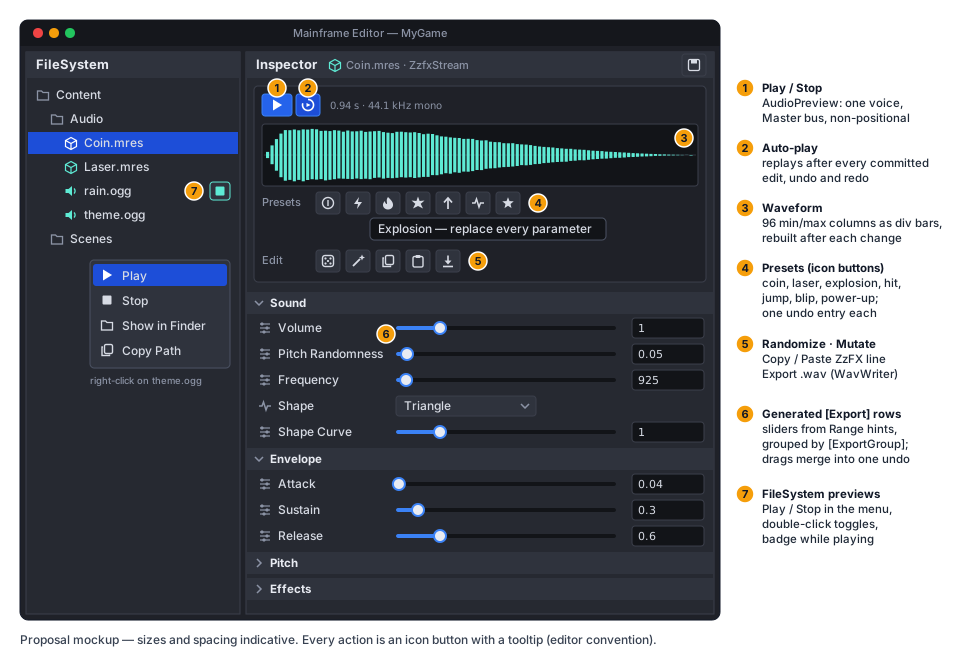
- Play / Stop toggles the preview; Auto-play (on by default,
SoundDesignerAutoPlayineditor_layout.json) replays the sound after every committed change — a slider release, a field commit, a preset, Randomize, Mutate, Paste, undo or redo — throughOnPropertyChanged. - Info and waveform: the length (“0.94 s · 44.1 kHz mono”) or the
LoadError/length error in the notice style; 96 min/max columns over the generated samples (normalised to the loudest peak) asdivbars sized indp, rebuilt with the header and cached per parameter set. - Presets (icon buttons: pickup/coin, laser, explosion, hit, jump, blip, power-up;
ZzfxPresets, a freshRandomper click), Randomize, Mutate (±10 % on non-default continuous parameters), Copy ZzFX (ToLine()to the clipboard) and Paste ZzFX (ZzfxParameters.TryParse; invalid text shows the parse error in aMessageDialogand changes nothing). Each sets every parameter that differs as one undo entry (CompositeActionofSetPropertyActions); undo restores the sound exactly. - Export .wav opens the file picker in save mode at
<sound folder>/<name>.wavand writes 16-bit PCM, 44.1 kHz mono throughWavWriter; an I/O error is reported (Commands.ReportError) and the partial file deleted. The new file gets its.meta/UID from the asset database like any dropped-in file.
Song tab (music editor)
Section titled “Song tab (music editor)”Double-clicking a .msong, File › New Song… (a file picker in Content/Music) or the FileSystem panel’s New Song…
opens a song tab (Music/SongTab, an IEditorTab; design: Music editor). A new song has
one instrument track with the built-in ZzFX instrument. The tab owns the SongDocument (its own undo history: Cmd+Z,
Cmd+S, Save As — a copy gets a new UID — and the close/quit prompts cover it like scenes) and one SongPlayer, stopped
when the tab is deactivated or closed. The scene tree and inspector rest while it is active, like a UI preview.
- Chrome (
SongPanel,Content/Editor/song.rml, over the view area): transport — to start, play, stop, loop, tempo field, time signature menu, position (bars.beats.ticks), snap menu (off, 1/4 … 1/32, triplets), underrun counter and Render; track headers (colour bar, name — double-click renames —, instrument, mute, solo, colour, remove; + adds an instrument or audio track); a Piano roll | Mixer switcher with the selected clip’s summary; mixer strips (instrument slot “Built-in ZzFX” with its menu, Edit Sound — the ZzFX line in a text field, checked byZzfxParameters.TryParse, auditioned on Apply — and audition; the slot’s menu also lists scanned VST3 instruments and opens the plugin’s editor window; an inserts button whose menu adds a scanned VST3 effect and, per insert, opens its editor, bypasses, moves it up/down or removes it — all undoableSongDocumentedits; pan; vertical volume fader in dB; peak meter fromTakeTrackPeak/TakeMasterPeakonce per frame; mute/solo) and the master strip (with its own inserts). Faders and the tempo field merge into one undo entry per drag or edit. No record-arm or record buttons and no metronome yet (no MIDI input,SongEnginehas no click). - Canvases: the arrangement (
ArrangementCanvas) and the piano roll (PianoRollCanvas) are[Tool]Node2Ds drawing withDrawRect/DrawLine/DrawStringin twoDisable3DSubViewports per tab, sized in framebuffer pixels (drawing in dp × scale keeps text sharp). TheSongViewnode publishes the active tab’s viewports asengine://song-arrange/engine://song-roll(theViewportPanelpattern), routes mouse input over the canvas areas (pointer-events none in the RML) to the tab’sSongCanvasController, keeps the playhead in view while playing and runs renders. Drawing allocates nothing in steady state (cached bar and note labels, colour cache, no LINQ). - Arrangement: ruler with bar numbers, the loop region in its top band (drag inside to move, edges to resize, outside
to draw a new one, which enables looping), click/drag below to seek; one 44 dp lane per track. Clips drag with snap
(also to another lane of the same kind), resize from either edge (an audio clip’s left trim moves its offset), Alt-drag
copies, Cmd+D duplicates after, Del deletes; double-click an empty instrument lane for a one-bar MIDI clip, an audio
lane for “Add Audio Clip” (file picker); dropping a sound from the FileSystem panel adds an audio clip (on an audio
lane, else on a new audio track) of the file’s length. Clip gestures are previewed and committed on release; MIDI clips
show their notes, audio clips min/max peaks (
SongWaveforms, decoded in the background and cached). - Piano roll of the selected MIDI clip: keyboard (click auditions through
PreviewNote), click adds a note of the last length, drag moves (snapped in song time; the moved note auditions), right edge resizes, empty-area drag is a rubber band (Shift adds), velocity lane (drag a bar; selected notes together), Del, Cmd+C/V (at the playhead inside the clip, else after the copy)/D, arrows nudge by the snap (Shift: an octave), Q quantizes (SongDocument.QuantizeNotes, one entry). Notes and velocity drag live with a merge key, ended on release: one undo entry per gesture. - Zoom and scroll: Cmd/Ctrl+wheel zooms time around the mouse, Shift+wheel (or a horizontal wheel) scrolls time, the wheel scrolls lanes / pitches.
- Render (transport button, FileSystem › Render on a
.msong):SongRenderJobrenders a copy of the song withSongRenderer.Renderon a worker thread; the button shows “Cancel 63 %” and cancels on click (the splash has no cancel and would block the editor, so progress is shown there instead). The result goes to the Output panel. The FileSystem badges a song whose output is older than the song (refresh icon, “Render out of date”). The output defaults toContent/Music/<Song>.ogg: the song is rendered to a temporary 32-bit float WAV and encoded by the plugin helper (mfplughost --serve,PluginHostClient; Vorbis VBR at the song’squality, default 6; ADR 0146), started on the first render and stopped with the editor. Without a helper binary for the platform an.oggoutput is written as.wav(with a warning). A.wavoutput’s samples aresampleFormat:float(the default) orpcm16. - Headless render:
MainframeEngine.Editor --render-song <path.msong>(just render-song <path>;SongRenderCommand) renders a song into the project above it (the nearest folder withproject.mfproj) exactly like Render — the output and its.meta— without a window, SDL or engine, and exits 0, or 1 on an error (CI, batch renders; the Demo’sContent/Music/demo_loop.oggis rendered this way). - VST3 plugins (ADR 0147):
PluginScannerrunsmfplughost --scanonce per bundle (30 s timeout) over the OS’s default VST3 folders plus Editor Settings › VST3 folders, caching results in~/.mainframe/plugins.jsonby path and modification time (Editor Settings › Rescan Plugins forces a full scan; the first plugin menu without a cache scans in the background). Each song tab’sSongPlayerowns aPluginRackwith its own helper (started on the first plugin):PluginInstrument/PluginEffectinstances in a file-backed shared memory; the render thread sends every track’s chain in oneprocessround trip per block (master inserts in a second), with a deadline of 4 blocks — a miss plays silence and counts an xrun (shown with the underruns) — and plugin delay compensation delays every track to the slowest chain. A helper crash marks the plugins unloaded; the next frame restarts the helper and reloads each plugin from its last captured state; a plugin that crashed it twice within a minute is disabled for the session and its track shows why (“insert disabled: …”, “missing plugin: Name (Vendor)” when a class is not installed). States (base64 of the component + controller streams) are captured into the song as undoable “Plugin State” edits on save, when the user closes a plugin’s window and before a render; undo pushes the previous state back to the plugin. Renders load their own copies in a separate helper in offline mode (10 s watchdog per block). - MIDI keyboards and recording (ADR 0148):
MidiInputService(owned by the workspace) runs its ownmfplughostfor RtMidi, started on first need (a device enabled in Editor Settings › MIDI inputs, or the dialog listing them). Enabled devices (remembered by port name) stay open; the helper polls its port list every second, an unplugged device shows offline and is opened again when it returns. Each UI frame the service hands messages to the active song tab’sSongMidiInput: notes play the record-armed track (the dot button on an instrument track’s header; one at a time), else the selected instrument track, through the engine’s preview path (its command ring: lock-free for the render thread, no allocation per event); the sustain pedal (CC64) holds note-offs while down; other controllers are ignored (the instrument API has none). The helper stamps each message with its steady clock; the client maps that toStopwatch(offset measured at connect and on each ping), and recording places a note at the transport position being heard when it was played: the player’s position minus the time since, minus the device buffer (a 10 ms estimate). Record (transport dot, R) starts playback if needed and writes the take into a new clip on the armed track (arming the selected one if none is): the recorded range rounded to bars, or the loop region with Loop on, each pass adding to the same clip (committed at every wrap so earlier passes play back); the pedal extends recorded lengths; input quantize (transport, off / 1/16 / 1/8) snaps note starts. A take is one “Record” undo entry (merged commits); Stop, R or leaving the tab ends it. Tests:MidiInputTests.cs(fake host; plus a real helper with a virtual keyboard,mfplughost --midi-test-source, on macOS/Linux). - Tests:
Tests/MainframeEngine.Editor.Tests/Music/SongTabTests.cs(tab, gestures → one entry each, grid math, keys) andSongWorkspaceTests.cs(panel, keys before shortcuts, save, close prompt); QA steps 13d–13f in the walkthrough (songQA step:new,demo,select,panel,play,stop,save,render;wait-for render).
Editor settings
Section titled “Editor settings”Project › Editor Settings (editor_settings.rml, saved to ~/.mainframe/editor_settings.json):
- Accent colour, applied live: recoloured copies of
theme.rcssanddialogs.rcssgo to an overlay content folder checked before the editor’s own, and the style sheets reload. - Autosave every N minutes (0 = off) for scenes that have a file.
- External code editor: a command with
{file},{line},{column}and{project}placeholders (with presets); empty meansMAINFRAME_CODE_EDITOR, else VS Code when found, else the OS default. Used by Output links, build errors and C# files. - Reload code automatically after builds.
- Check for updates at startup (default on) — see Editor updates.
- 3D view resolution: Auto (one pixel per point, the default), Full, 75 % or 50 % of the display’s pixels
(
viewResolution: absent or null is Auto) — see Viewport. - VST3 folders (extra folders,
;-separated, besides the OS defaults) and Rescan Plugins (the music editor’s plugin scan; the hint shows the instrument/effect counts and failed bundles). - MIDI inputs: every device the helper reports (and enabled ones it does not, as offline), each with a toggle and
its connected state; the refresh button lists them again. Applied devices are opened by
MidiInputService.
Updates
Section titled “Updates”Released builds check GitHub Releases at start-up (Editor Settings › Updates; Help › Check for Updates… always works). A
newer release shows a green badge in the toolbar and the Project Manager; it opens the update dialog (notes, View
release, Update & restart). Runs with --hidden, --smoke, --qa-script and tests have no update service; QA
captures the dialog with update-preview X.Y.Z. See Editor updates.
Files and safety
Section titled “Files and safety”- Open/Save/Save As go through the RmlUi file picker; scenes are written by
SceneSaver(temp file + rename) and keep their UID across saves. A failed save keeps the old file and the scene dirty and shows the error. - Every command runs guarded: an exception becomes an Output error and a message box, never a crash.
- An unhandled exception writes recovery copies of unsaved scenes to
~/.mainframe/recovery/.
The window icon, macOS bundle icon, Windows ApplicationIcon and the splash use the “C3 Circuit” logo
(docs/images/brand): logo-macos-512.png on macOS (Apple’s icon grid; it is the Dock
icon), logo-48.png elsewhere. Window icon pixels are reordered for Silk’s SDL surface masks (WindowIcon).
Engine changes made for the editor
Section titled “Engine changes made for the editor”| Change | Where |
|---|---|
SceneTree.EditMode, Node.IsTool | Scene graph & nodes |
SceneViewport.CameraOverride, SceneViewport.OverlayLines, SubViewport.ColorTarget | Scene graph & nodes, Materials & meshes |
SubViewport.Shadows (a view of another world may own the shadow maps when the main world has nothing to shadow) | Scene/SubViewport.cs, Servers/RenderServer.cs |
SubViewport.PostProcessing, AntiAliasing, TaaSharpness (ADR 0169: the view’s own post stack; debug visuals after it) | Post-processing → Sub-viewports |
SceneSaver save hooks skip unowned (runtime) nodes, so a [Tool] node’s generated terrain is never written | Scene serialization |
ContentPaths.ProjectDirectory | Core/ContentPaths.cs |
| List bindings tolerate rows past the end of a list that just shrank | Game UI |
WindowIcon byte order for window icons | Core/WindowIcon.cs |
[EditorIcon], EditorIconFamily, Export(Icon); NodeTypeInfo.Icon/IconFamily/Description, ExportHints.Icon/Description | Scene serialization |
UiServer.ClipboardText (the Output panel’s Copy) | UI/UiServer.cs |
SceneTree.ReleaseCodeOf also clears the process lists’ snapshots (they held freed game nodes and kept an unloaded game assembly alive) | Scene/SceneTree.cs |
| Unregistering a UI texture releases RmlUi’s texture cache entry, so a name registered again is reloaded (the viewport after switching tabs) | UI/Rendering/VulkanUiRenderer.Tables.cs |
UiLayer.Region (a layer confined to a window rectangle) and UiServer.Reload(document, kind) (the UI preview) | Game UI |
Testing and QA
Section titled “Testing and QA”- Unit tests (Tests/MainframeEngine.Editor.Tests,
just test, CI on all three OSes): undo/redo (do/undo/redo/merge/limits/dirty), the inspector model for every type and hint, scene operations (delete/undo restores subtree + owners + connections, reparent keeps the global transform, duplicate with unique names, instances and connections, atomic save + reload), layout and its persistence, the file picker, camera and gizmo math, the output log, and the whole UI headless (RmlUi with the null renderer): panels load without RmlUi warnings, tree clicks and drags, inspector edits for every kind, Add Node, menus, shortcuts, rename, Save As, the quit prompt, recovery copies, and 0 B per idle frame with 1 000 nodes (and with a tooltip shown). - Post-processing (ADR 0169) (PostProcessEditorTests):
the profile opens inline with its six groups closed, a group opens, an edit applies live and undoes; New creates a
profile and Save as .mres moves it (and its second user) to a file, undoable; a
.mresedited in place is written with the scene under its UID; an imported LUT does not open; a slot’s name spans the editor column (the buttons wrap below it; an empty slot’s stay beside it) with the file’s path in its tooltip; the Preview Post-Processing toggle switches the view (and 2D tabs have none). The walkthrough (just qa-editor) ends with a new profile edited inline (16-post-profile) and the preview off (17-post-preview-off); Tests/QA/forest-post.qa opens the Forest, itsforest.mresand the preview. - Icon gates (IconTests): the generated atlas matches
icons.txt(every sheet, sizes, vendored SVGs); every icon the editor’s RML, RCSS and C# reference (class lists, sprite references,[EditorIcon],Export(Icon),Icon:arguments, the resolvers) exists — a missing name fails the build; every engine node/resource type resolves to its own icon and a family; a headless lint walks every panel, dialog and menu: each icon element names one atlas icon and every icon-only control has adata-tooltip. Tooltip timing, placement, keyboard focus and dismissal, the create dialog’s tree and search, Output features, scene tree badges and inspector icons have their own tests (IconPanelTests). - Render tests (EditorRenderTests): the editor’s
--smokerun in a hidden window — open the showcase fixture (Tests/Content/Scenes/Showcase.mscene), select the Column by GPU picking at its projected pixel, change its position through the inspector model, undo/redo, save to a temp file, reload and re-save byte-identically — plus the editor window golden, frame times on the scene, the allocation gate (0 B over 300 idle frames with 1 000 nodes, validation on), the splash golden, and the Project Manager and FileSystem panel goldens (--smoke-golden project-manager|filesystem, a fixed sample project). - Projects, Play and FileSystem tests: the New Project validation, recent projects, SDK detection, the
ProjectSettingsModel(every setting, input map, autoloads, undo, save), build-diagnostic parsing,PlayServicewith fake builder/launcher and a realEditorLinkServer, the file tree, file operations and reference fix-ups, thumbnails and the trash (the real OS trash only withMAINFRAME_TEST_SYSTEM_TRASH=1). Code reload is tested with game assemblies compiled by Roslyn in the test (CodeReloadTests: a type added, changed and removed; state kept; the old context collected).ProjectWorkflowTestsdrive the headless editor through the panels (create, open, rename with fix-ups, drag onto the scene tree, Play with a fake launcher, the Saves page and Open User Data Folder with a recording opener). A slow integration test (Category=Slow) runs the realdotnet new mfgameand build. - Scripted QA (
just qa-editor, Tests/QA/editor-walkthrough.qa): the real editor driven through the UI input path (--qa-script: clicks by point or#element-id, drags, gizmo drags, keys, text, commands, dialog answers,window-close,inspector-header <action>,inspector-section <key>,inspector-set <property> <value>,fs-select,delete-file,view-resolution auto|full|threeQuarters|half) with captures inartifacts/qa-editor.just qa-projects(project-workflow.qa) creates a game from the Project Manager, adds nodes and saves, plays it (game frame and logs), pauses and stops, edits its C# and builds & reloads, withtiminglines for each step (wait-for project|playing|stopped|idle,new-project,add-node,replace-in-file,play-args). The walkthrough also captures the update dialog (update-preview X.Y.Z, no network) and the Editor Settings dialog. - README screenshots (
just readme-screenshots, readme-screenshots.qa): the Project Manager (recent-projectseeds the list), the showcase scene (open-project,camera,collapse), the create dialog (favorite,search,pick) and a new game after a code reload while it plays, captured at 2x (--scale 2, 3200×1920 px) and downscaled to 1600×960 intodocs/images/editor*.pngwith ImageMagick. The scene is Examples/Demo — aGameHostgame project (engine by project reference,../..) whose game code the editor loads, so every node type resolves. Projects are opened from the neutral/tmp/MainframeProjects(the recipe links the Demo there), so no user path is on screen; editor log lines show project files relative to the project (Saved Content/Scenes/basic_3d.mscene).
Performance
Section titled “Performance”Apple M5, MoltenVK, hidden 1280×720-point window at content scale 2 (2560×1440 px), the showcase fixture scene open (sky, five lights with Shadows v2 cascades and atlas, Spine, physics crates, a glTF model), Debug build with validation: 8.3 ms average, 9.0 ms p95 per frame (the 120 Hz display rate). Idle frames allocate nothing.
The Forest (Release, hidden 1800 × 1100-point window at scale 2 without vsync, the view ≈ 2400 × 1630 px at Full; the trail camera of forest-post.qa; 300-frame runs; GPU timestamps per pass):
| 3D view | Post preview on | Post preview off |
|---|---|---|
| Full (before: every pixel) | 29–30 fps (31.6 ms GPU) | 21 fps (44 ms GPU) |
| 75 % | 42 fps | — |
| Auto / 50 % (one pixel per point) | 61–69 fps (14.3 ms GPU) | 52 fps (18 ms GPU) |
At Full the post-processed frame was: the view’s shadows 3.9 ms, depth prepass 5.8, GTAO 3.2, contact shadows 1.4, the scene pass 10.2, volumetric fog 2.9, TAA 1.6, glow 0.5, tonemap + RCAS 0.8, grade 0.3, the editor UI 0.9. Every pass but the shadows scales with the view’s pixels — 3.4 times the game’s at 1920 × 1080 with TAAU 0.75, and per pixel no more expensive than the game’s frame — and nothing ran twice: one view renders (hidden tabs do not), no target is re-created per frame, the prepass is the view’s own. Without the preview the view has no depth prepass, so in dense foliage the scene pass shades every hidden leaf (39 ms alone at Full): the preview on is the faster view there. From above (fewer leaves, more sky) the preview costs about 6 ms at Full (9.3 → 15.3 ms GPU).
Known issues
Section titled “Known issues”-
Hidden tabs keep their post state (TAA history, pooled targets) while hidden: memory, not time.
-
Without Preview Post-Processing a 3D view has no depth prepass: in dense foliage it is slower than with it.
-
A code reload drops the undo history of the scenes it re-creates (selection, view and dirty state are kept).
-
The gizmo moves the last selected node only; there is no box selection.
-
Signal connections are real delegates in the editor: a
[Tool]node emitting in edit mode calls its targets. -
The accent colour recolours the shared style sheets; a few inline document styles keep the default blue.
-
A scene file rewritten by a reference fix-up loses hand-written formatting (other files are untouched).
-
Lines are one framebuffer pixel wide; gizmo handles are drawn as several parallel lines.
-
The Output panel has four levels (the engine’s
Loghas no trace level). Icons are fixed-colour glyphs tinted per family; there are no per-icon multi-colour glyphs like Godot’s.
Related docs
Section titled “Related docs”Future: editor · Project & game host · Game UI · Scene graph & nodes · Scene serialization · Materials & meshes · Release · Editor updates · Testing